.svg)

This document describes the steps needed to setup Azure / WAAD / Entra ID as Identity Provider for SSO integration with Flowcase.
Prerequisites
Flowcase supports SSO integration with Azure Active Directory / Entra ID using the SAML protocol. This document describes the configuration steps, presuming the customer already has an Azure account with this service enabled.
Configuration of the Azure / WAAD / Entra ID service
1) Sign in to your management console, for example https://portal.azure.com/ or https://entra.microsoft.com
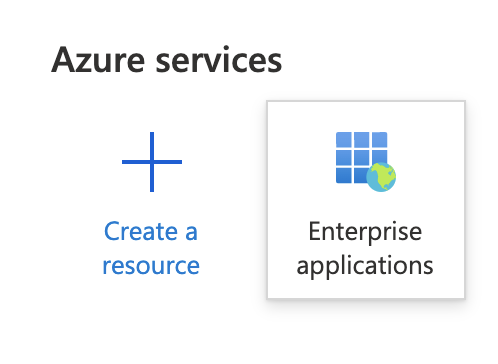
2) Go to Enterprise applications
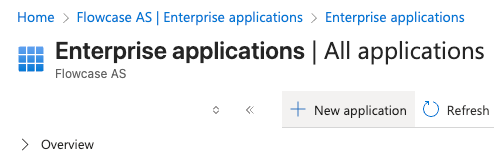
3) Click "+ New application"
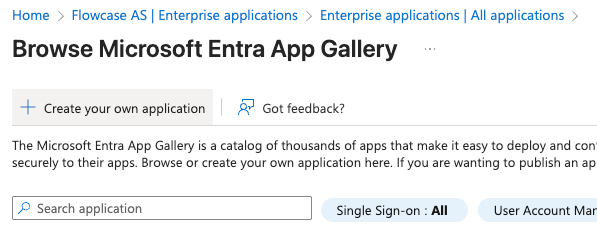
4) Click “Create your own application”
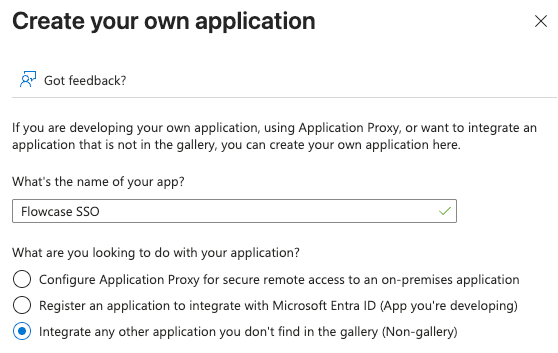
5) Enter a suitable name, and click “Create”, for example:
6) The new app should open for editing, otherwise go back to Enterprise Applications list and click on it first
7) Click “Get started” under option “2. Set up single sign on”
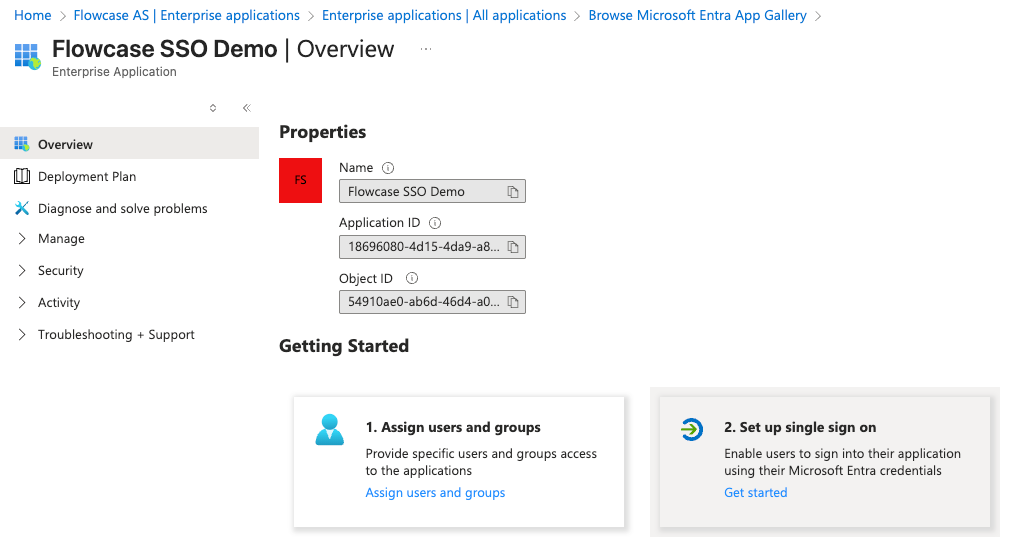
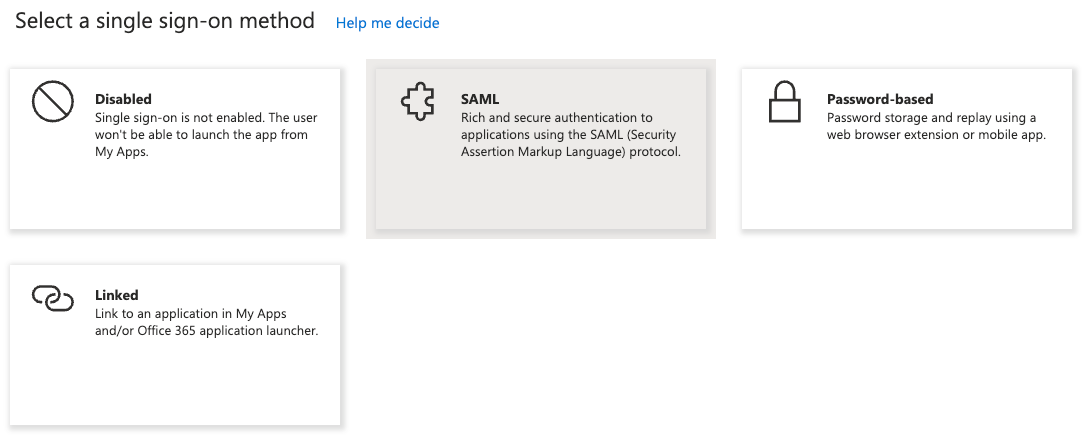
8) Click "SAML"
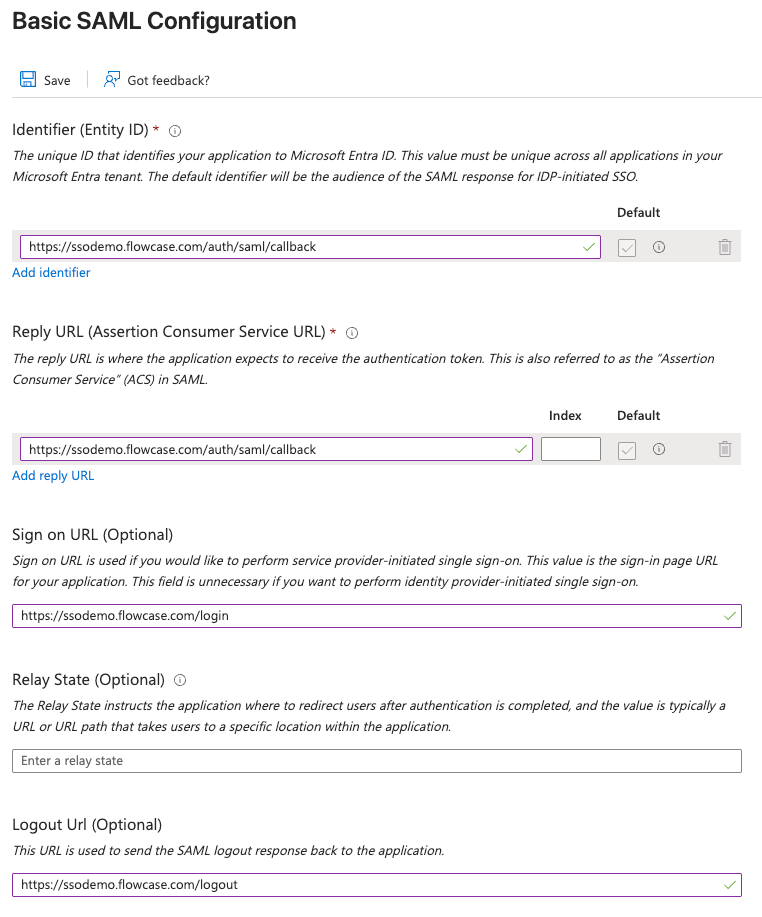
9) In the “Basic SAML Configuration” section, fill in like the screenshot below, replacing <<yourcompany>> with your Flowcase subdomain:
Identifier:
https://<<yourcompany>>.flowcase.com/auth/saml/callback
Reply URL:
https://<<yourcompany>>.flowcase.com/auth/saml/callback
Sign on URL:
https://<<yourcompany>>.flowcase.com/login
Relay State:
Leave empty.
Logout URL:
https://<<yourcompany>>.flowcase.com/logout
10) Click “Save”.
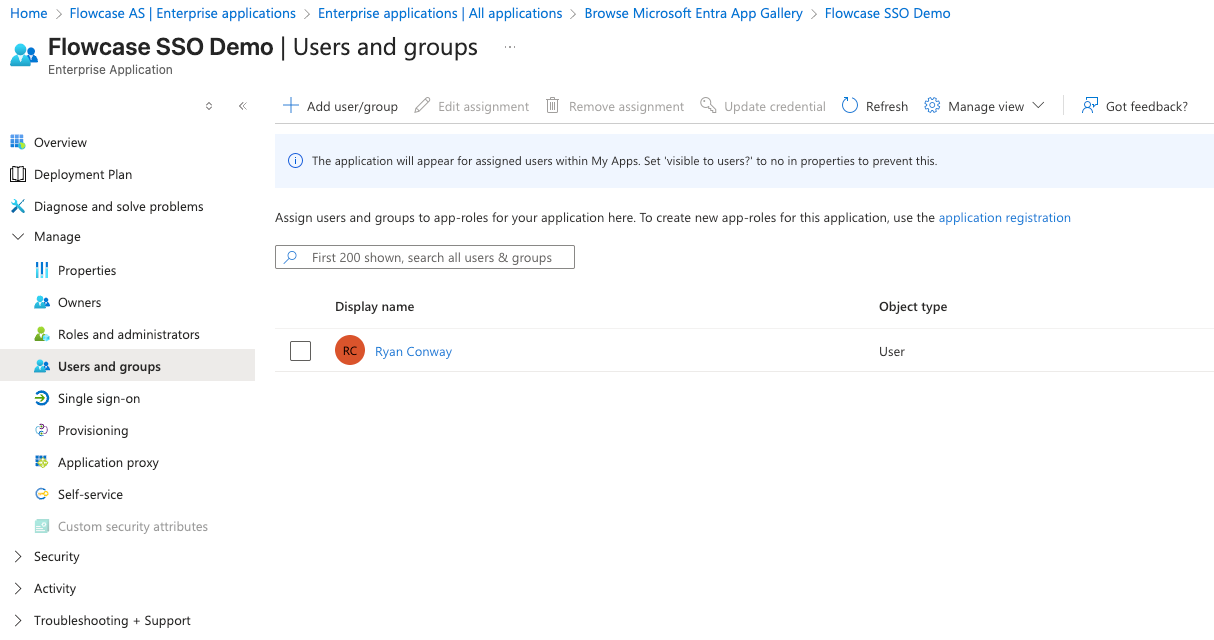
11) Under "Manage" - Click on "Users and Groups" then “Add user/group”, and assign access to the desired users and/or groups.
For example, your whole company or individual users and groups (depending on your Azure subscription individual users might be your only option).
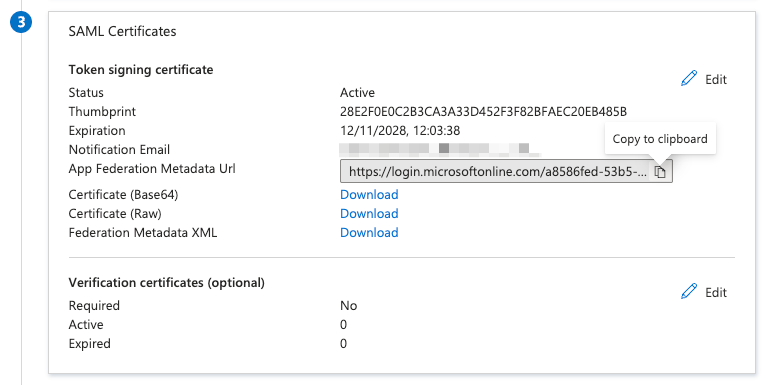
12) Under "Manage" - Go back to "Single sign-on", and scroll down to the third section
Copy the App Federation Metadata URL and send to onboarding@flowcase.com.
Verification
Once we’ve received the URL to the Federation Metadata document, we will activate the integration on our side, and the customer can then verify it works by accessing.
https://<<yourcompany>>.flowcase.com/login
The customer should expect to be redirected to https://login.microsoftonline.com/ (or equivalent) and asked for authentication, before being redirected and logged into Flowcase. The customer might not be asked for authentication if inside the customer’s internal network, but this is dependent on configuration. Both access from inside the customer’s internal network and outside should be tested and verified.
Note that a user account must exist in Flowcase too, in order for the login to work fully, but provisioning is discussed with your Customer Success Manager during onboarding, as there are different options depending on your requirements.
Troubleshooting
Please send any further inquires on the chat on the bottom right, or directly to techsupport@flowcase.com.
.png)